Cybersecurity for Remote Workers: 12 Essential Habits
Working from home brings new security risks. Learn 12 essential cybersecurity habits — from password managers and MFA to phishing awareness — that protect you and your employer.
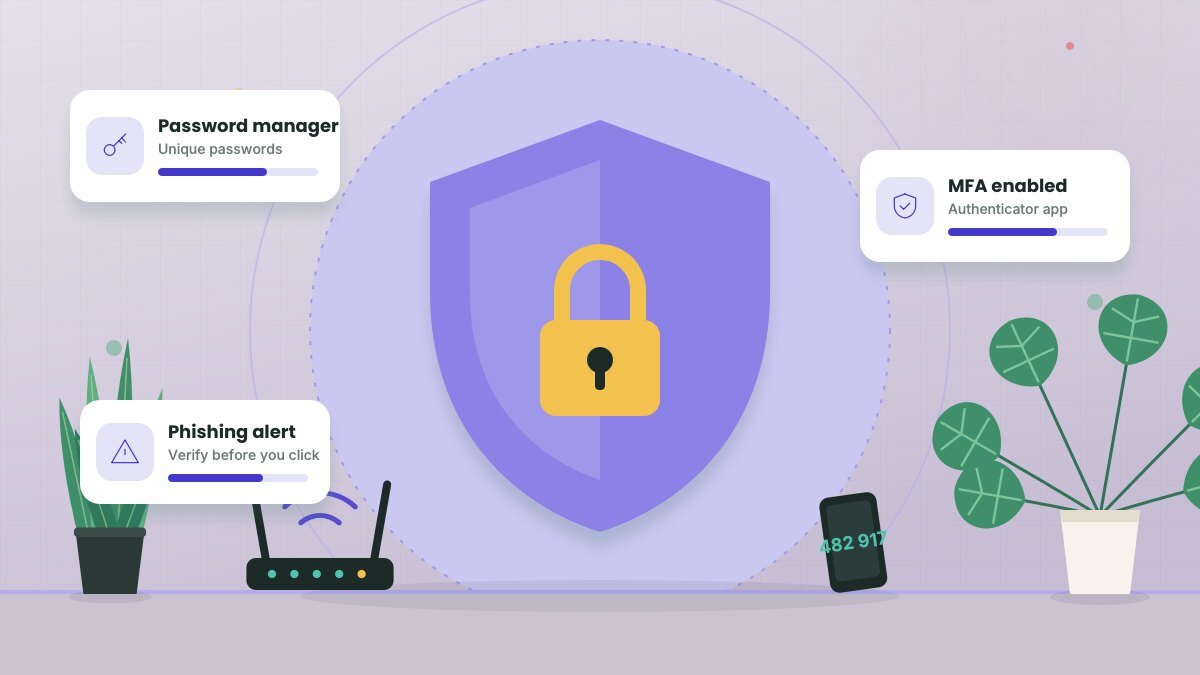
When you work from home, your living room becomes part of your company's network. Home Wi-Fi, personal devices and busy family schedules create openings that attackers love to exploit. The good news is that most successful attacks rely on simple weaknesses. Building a handful of strong habits dramatically reduces your risk.
1. Use a password manager
Reusing passwords is one of the biggest security risks online. If one site is breached, attackers try the same credentials elsewhere. A password manager creates and stores long, unique passwords for every account, so you only need to remember one strong master password.
2. Turn on multi-factor authentication (MFA)
MFA requires a second proof of identity — like a code from an authenticator app, a push notification or a physical security key — in addition to your password. The Cybersecurity and Infrastructure Security Agency (CISA) recommends MFA as one of the most effective ways to protect accounts. Use app-based or hardware MFA rather than text messages when possible.
3. Learn to spot phishing
Phishing emails and messages trick you into clicking malicious links or sharing information. Warning signs include:
- Urgent language ("Your account will be closed today!")
- Unexpected requests for passwords, payment or gift cards
- Mismatched sender addresses or slightly misspelled domains
- Links that don't match where they claim to go — hover to check
- Messages that appear to come from executives asking for unusual favors
When in doubt, verify the request through a separate channel, like calling the person on a known number.
Watch for AI-powered scams. Attackers increasingly use convincing writing and even voice cloning. If a "manager" calls asking for an urgent wire transfer or password reset, hang up and verify through official channels.
4. Secure your home Wi-Fi
- Change your router's default admin password.
- Use WPA3 encryption (or WPA2 if WPA3 isn't available).
- Choose a strong Wi-Fi password.
- Keep your router's firmware updated.
- Consider a separate guest network for visitors and smart home devices.
5. Keep everything updated
Updates fix security vulnerabilities. Turn on automatic updates for your operating system, browser, apps and devices. Restart your computer regularly so updates can install.
6. Use your company's VPN and approved tools
If your employer provides a VPN, use it as instructed, especially on public networks. Stick to company-approved apps for storing and sharing work files rather than personal accounts.
7. Separate work and personal use
Avoid using your work laptop for personal browsing, gaming or downloads, and don't let family members use it. Likewise, don't store work data on personal devices unless your company's policy allows it.
8. Lock your screen
Lock your computer whenever you step away, even at home. Set a short auto-lock timer. It protects confidential information from curious eyes and accidental clicks by kids or pets.
9. Be careful on public Wi-Fi
Coffee shops and airports are convenient but risky. Use your company VPN or your phone's hotspot instead of open networks, and avoid accessing sensitive information in public places where others can see your screen.
10. Back up important data
Ransomware and hardware failures can wipe out your files. Use your company's approved cloud storage or backup system so work isn't stored only on your laptop.
11. Protect physical documents and devices
Shred sensitive printouts, don't leave confidential papers on your desk, and keep devices secure if you live with roommates or have frequent visitors.
12. Report incidents quickly
If you click a suspicious link, lose a device or notice something unusual, report it to your IT or security team right away. Fast reporting limits damage. Most companies would much rather hear about a false alarm than discover a breach weeks later.
Related guide: Headsets, Microphones and Webcams: A Remote Worker's Buying Guide
Key takeaways
- Use a password manager and enable multi-factor authentication everywhere.
- Learn to recognize phishing and verify unusual requests through another channel.
- Secure your router, keep devices updated and use your company's VPN.
- Report suspicious activity quickly — speed matters.
Frequently asked questions
Is home Wi-Fi safe for work?
It can be, if it's secured with strong encryption, a unique password and updated firmware, and if you use your company's VPN as required.
What should I do if I clicked a phishing link?
Disconnect from the network if instructed, change any passwords you entered and contact your IT team immediately.
Do I need antivirus software?
Most company devices come with endpoint protection managed by IT. For personal devices, built-in protection in modern operating systems plus good habits covers most needs.
This article is for general informational purposes and isn’t a substitute for professional legal, medical, tax or financial advice. See our disclaimer.


