Desk Ergonomics: How to Set Up Your Workstation to Prevent Pain
Set up your home workstation the right way. Follow this head-to-toe ergonomic checklist for chair, desk, monitor, keyboard and mouse to reduce strain and discomfort.
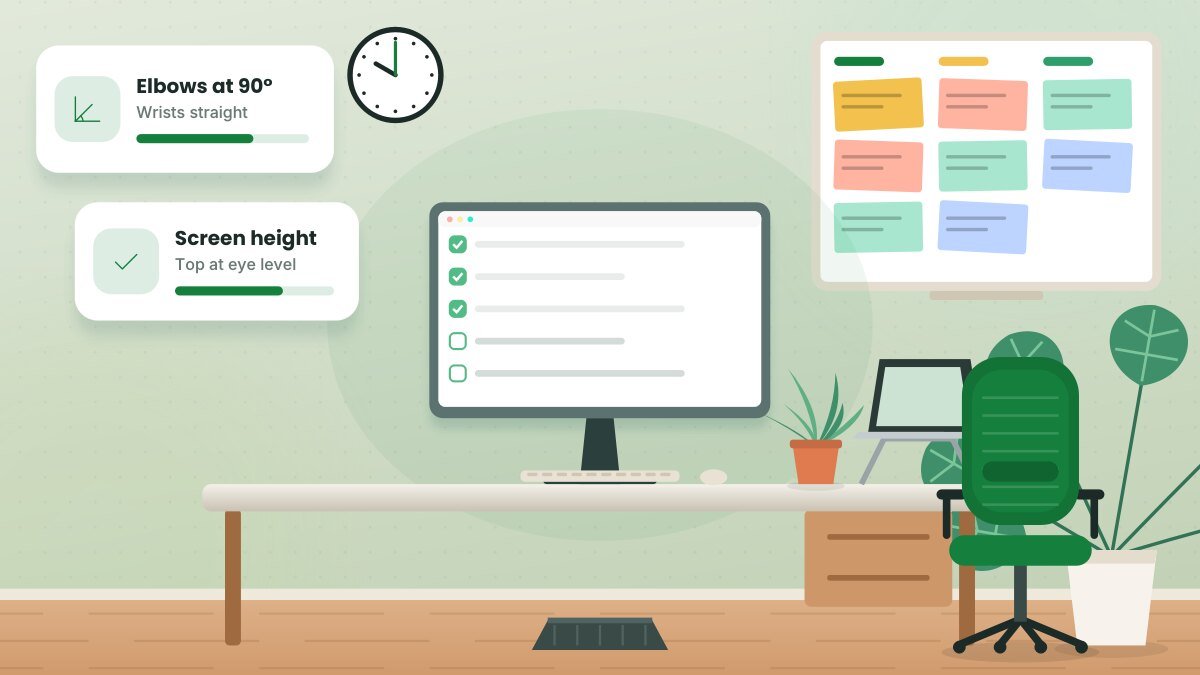
Many remote workers set up their home offices in a hurry, then spend months dealing with sore necks, aching backs and tight wrists. Ergonomics — fitting your workspace to your body — can help prevent many of these issues. OSHA and other occupational health organizations emphasize the same core principle: arrange your workstation so your body can stay in a comfortable, neutral posture. Here's a head-to-toe guide.
The goal: neutral posture
Neutral posture means your joints are naturally aligned, reducing strain on muscles, tendons and the skeletal system. In a seated position, it generally looks like this:
- Head balanced and level, not pushed forward
- Shoulders relaxed, not hunched or raised
- Elbows close to your body and bent at about 90 to 110 degrees
- Wrists straight, not bent up, down or to the side
- Lower back supported
- Thighs roughly parallel to the floor
- Feet flat on the floor or a footrest
Step 1: Adjust your chair first
Your chair is the foundation of your setup.
- Seat height: Adjust so your feet rest flat and your knees are about level with your hips.
- Seat depth: Leave two to four finger-widths between the front edge of the seat and the backs of your knees.
- Lumbar support: Position it to fit the inward curve of your lower back.
- Backrest angle: A slight recline, roughly 100 to 110 degrees, can reduce pressure on your spine.
- Armrests: Lower them enough that your shoulders stay relaxed, or remove them if they keep you from sitting close to the desk.
Step 2: Set your desk or keyboard height
With your chair adjusted, your keyboard should sit at about elbow height. If your desk is too high:
- Raise your chair and add a footrest, or
- Use a keyboard tray that sits below the desk surface.
If your desk is too low, use desk risers or a height-adjustable desk.
Step 3: Position your monitor
- Height: The top of the screen should be at or slightly below eye level, so you look slightly downward at the middle of the screen.
- Distance: About an arm's length away — roughly 20 to 30 inches for most monitors.
- Centered: Place your main monitor directly in front of you to avoid twisting your neck.
- Dual monitors: If you use both equally, center them with the seam in front of you. If you use one more, center that one and angle the second to the side.
- Bifocals or progressives: Lower the monitor a little more so you don't tilt your head back.
Laptop users: Working directly on a laptop forces you to choose between a good screen height and a good keyboard height. Use a laptop stand plus an external keyboard and mouse to get both.
Step 4: Keyboard and mouse
- Keep your keyboard directly in front of you with the "B" key roughly centered to your body.
- Keep wrists straight and floating while typing; use wrist rests only during pauses.
- Place your mouse right next to your keyboard at the same height to avoid reaching.
- Consider a compact keyboard without a number pad so the mouse can sit closer.
- Try a vertical mouse if your wrist or forearm feels strained.
Step 5: Reduce glare and set lighting
Position your monitor perpendicular to windows when possible and use blinds to control bright light. Add a task lamp for paperwork. Adjust screen brightness to match the room.
Step 6: Keep frequently used items close
Place your phone, notebook and other daily items within easy reach to avoid repetitive stretching or twisting.
Step 7: Move regularly
Even a perfect setup can't make sitting still for hours healthy. Change positions frequently, stand up during calls and take short movement breaks. Health guidance generally emphasizes breaking up long periods of sitting.
Quick ergonomic checklist
- Feet flat, knees at hip level
- Lower back supported
- Shoulders relaxed, elbows near 90 degrees
- Wrists straight while typing
- Monitor at arm's length, top at eye level
- Mouse beside keyboard
- No glare on screen
- Movement break at least every hour
When to seek help
If you experience persistent pain, numbness, tingling or weakness, talk with a healthcare provider. A physical therapist or occupational therapist can assess your setup and recommend specific changes. Your employer's HR team may also offer ergonomic assessments or equipment.
Related guide: How to Prevent Eye Strain When Working on a Computer
Key takeaways
- Aim for a neutral posture with relaxed shoulders, straight wrists and supported back.
- Adjust your chair first, then your keyboard height and monitor position.
- Laptop users need a stand plus external keyboard and mouse.
- Move regularly — no setup replaces movement.
Frequently asked questions
How high should my monitor be?
The top of the screen should be at or slightly below eye level when you sit upright.
Is it bad to work from the couch?
Occasional couch work is fine, but long periods on a couch usually lead to slouching and neck strain. Use a proper workstation for most of your day.
Can my employer help with ergonomic equipment?
Many employers offer stipends, equipment or ergonomic assessments for remote employees. Ask HR about available programs.
This article is for general informational purposes and isn’t a substitute for professional legal, medical, tax or financial advice. See our disclaimer.


